
Checking ad performance data to see when visuals stop working and swapping them out before performance drops too much.
Ad accounts accumulate dozens of ad sets and creatives. Manually tracking frequency, click-through rates, and cost-per-acquisition across every single image and video takes hours, meaning stale ads often run for days after they should have been paused.
- Before
- 120 min
- After
- 45 min
- Saved
- 75 min
How this used to go
- Export ad performance data from the advertising platform into a spreadsheet.
- Filter the data by date range and isolate active ad creatives.
- Calculate frequency and cost-per-acquisition trends for each individual visual over the last seven to fourteen days.
- Compare current metrics against historical benchmarks to identify which assets show fatigue.
- Log into the ad manager to pause the underperforming creatives.
- Select replacement images or videos from the asset library and build new ad variations.
Cross-referencing dozens of performance metrics against a growing library of image and video assets every week is tedious and easy to delay.
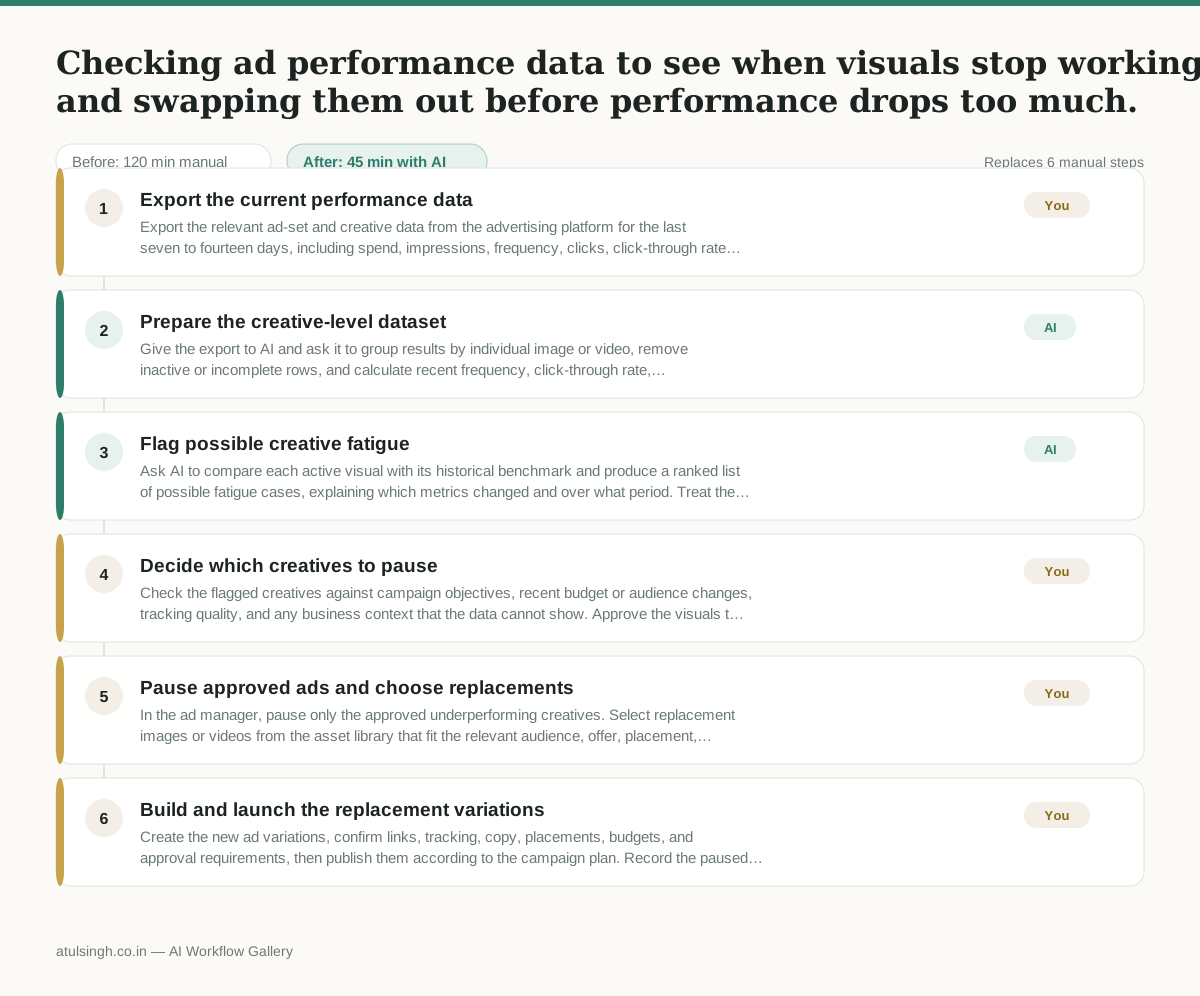
The workflow, step by step
- You
1. Export the current performance data
Export the relevant ad-set and creative data from the advertising platform for the last seven to fourteen days, including spend, impressions, frequency, clicks, click-through rate, conversions, and cost-per-acquisition. Include enough historical data to compare each visual with its normal performance.
- AI
2. Prepare the creative-level dataset
Give the export to AI and ask it to group results by individual image or video, remove inactive or incomplete rows, and calculate recent frequency, click-through rate, conversions, and cost-per-acquisition trends. Ask it to show the calculations and flag missing data rather than filling gaps with assumptions.
- AI
3. Flag possible creative fatigue
Ask AI to compare each active visual with its historical benchmark and produce a ranked list of possible fatigue cases, explaining which metrics changed and over what period. Treat the list as a screening aid: frequency and performance can also change because of audience, budget, attribution, or auction conditions.
- You
4. Decide which creatives to pause
Check the flagged creatives against campaign objectives, recent budget or audience changes, tracking quality, and any business context that the data cannot show. Approve the visuals to pause, reject false positives, and set a replacement priority; this decision determines which ads lose delivery and which remain active.
- You
5. Pause approved ads and choose replacements
In the ad manager, pause only the approved underperforming creatives. Select replacement images or videos from the asset library that fit the relevant audience, offer, placement, and brand requirements.
- You
6. Build and launch the replacement variations
Create the new ad variations, confirm links, tracking, copy, placements, budgets, and approval requirements, then publish them according to the campaign plan. Record the paused creative, replacement asset, launch date, and starting benchmark for the next review.
What you end up with
Where this falls apart
- Attribution windows or conversion tracking break unexpectedly, causing the AI to flag functional creatives as fatigued due to missing conversion data.
- Campaign budgets or target audiences change significantly during the evaluation period, causing the AI to misinterpret natural performance shifts as creative fatigue.
More for Performance Marketer
- Write and test five ad variants for one campaign from a single landing page
- Pulling the weekly paid channel report and explaining what actually drove the performance changes
- Figure out why ad spend suddenly stopped working and cost per lead doubled over the last week.
- Write and test five ad variants for a campaign, pausing underperformers after launch
Also in marketing
- Turn a recorded customer interview into a draft blog post
- Sorting incoming customer leads from web forms and assigning them to the right sales reps based on company size and location
- Turn a technical whitepaper into a three-part email nurture sequence before it launches
- Analyze competitor viral posts to draft three trend hooks, discarding off-brand angles