
Tracking stakeholder changes in an enterprise account and updating the CRM before the next customer touchpoint.
Buying committee members leave, change roles, or get promoted without notifying the vendor, leading to awkward outreach to former champions and outdated contact records in the CRM.
- Before
- 45 min
- After
- 20 min
- Saved
- 25 min
How this used to go
- Open LinkedIn Sales Navigator and search for key contacts within the enterprise account to check for job title changes or departures.
- Cross-reference the current account team list in the CRM against findings from LinkedIn.
- Check recent email bounce-backs, out-of-office replies, or forwarded messages in the inbox for clues about departed staff or new hires.
- Review meeting attendance logs from recent calls to see if new titles or unfamiliar names appeared.
- Manually update contact records, titles, and ownership fields in the CRM, creating new records for incoming stakeholders and marking departed ones as inactive.
Manually digging through LinkedIn profiles and email threads for every single account takes hours, and it is easy to miss subtle title changes or internal lateral moves until an email bounces.
The workflow, step by step
- You
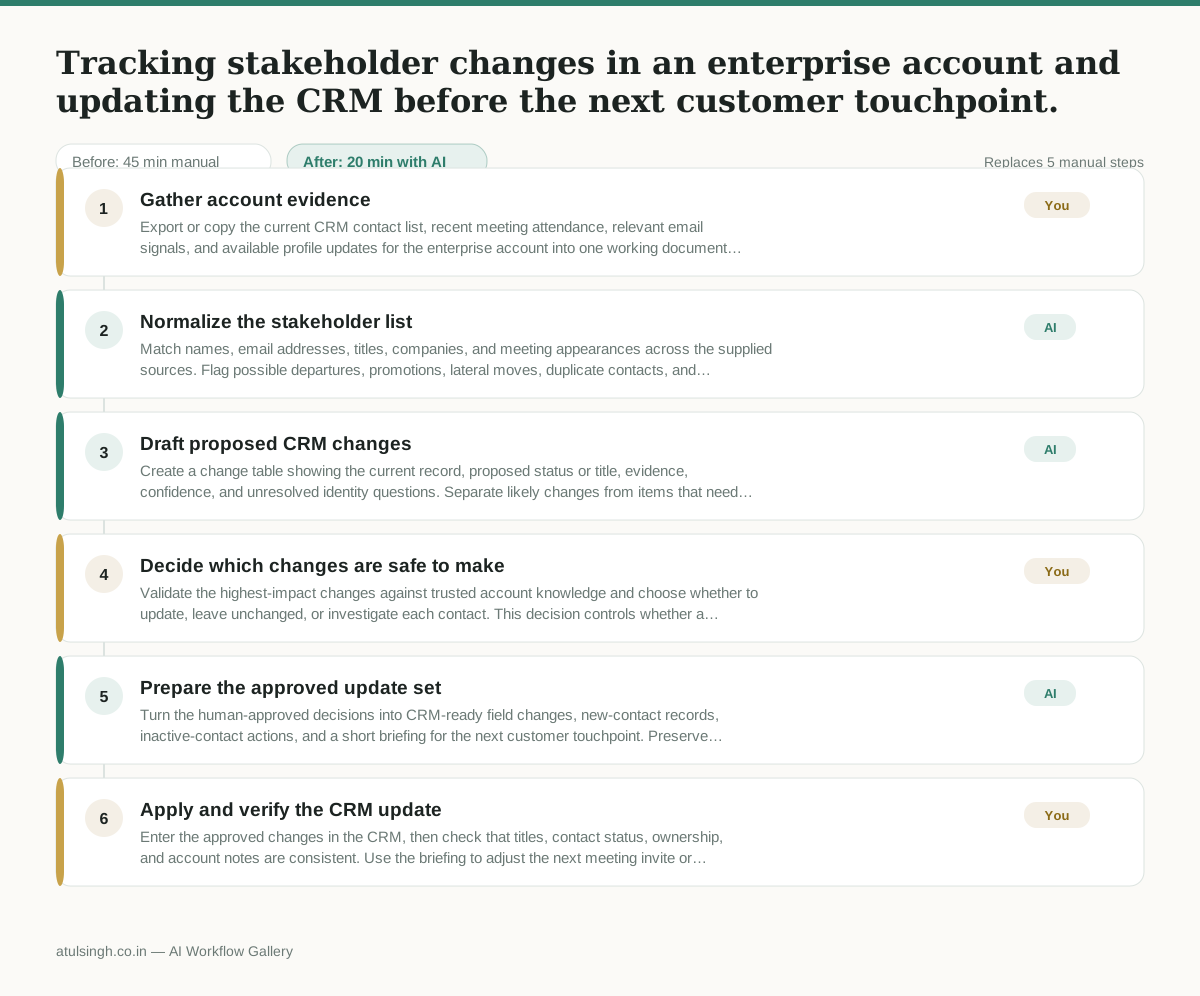
1. Gather account evidence
Export or copy the current CRM contact list, recent meeting attendance, relevant email signals, and available profile updates for the enterprise account into one working document. Include the source and date for each item so changes can be traced.
- AI
2. Normalize the stakeholder list
Match names, email addresses, titles, companies, and meeting appearances across the supplied sources. Flag possible departures, promotions, lateral moves, duplicate contacts, and unfamiliar attendees without treating any single signal as proof.
- AI
3. Draft proposed CRM changes
Create a change table showing the current record, proposed status or title, evidence, confidence, and unresolved identity questions. Separate likely changes from items that need confirmation because AI cannot reliably verify employment or distinguish people with similar names.
- You
4. Decide which changes are safe to make
Validate the highest-impact changes against trusted account knowledge and choose whether to update, leave unchanged, or investigate each contact. This decision controls whether a former champion is marked inactive, whether a new stakeholder is added, and whether account ownership or outreach plans change.
- AI
5. Prepare the approved update set
Turn the human-approved decisions into CRM-ready field changes, new-contact records, inactive-contact actions, and a short briefing for the next customer touchpoint. Preserve the evidence and note any contacts that must not be treated as confirmed.
- You
6. Apply and verify the CRM update
Enter the approved changes in the CRM, then check that titles, contact status, ownership, and account notes are consistent. Use the briefing to adjust the next meeting invite or outreach, while keeping uncertain contacts out of automated or highly specific messaging.
What you end up with
Where this falls apart
- Common names shared by multiple people across the industry cause the AI to mistakenly match employment records, leading to incorrect updates in the CRM.
- Outdated or unverified third-party profile data is treated as current employment fact, resulting in valid active champions being marked as departed.
More for Customer Success Manager
- Checking whether a client account is confidential before publishing a case study or sharing details externally
- Identifying which accounts are ready for an expansion conversation based on their product usage and feature adoption data.
- Prepare a quarterly business review deck for a customer account using product usage data and past support tickets
- spot which accounts are at renewal risk before the renewal call
Also in support
- Review last week's support tickets and find the three macros that need rewriting
- score a sample of agent replies against the team's quality checklist
- Reviewing last week's support tickets to update macros and remove outdated responses before sharing them with the team
- Write the escalation summary before handing a stuck ticket to engineering